TPU Container Instance Management
After the instance is created, you can enter the "Instance Management" page from the left navigation of the console to view and maintain all TPU container instances.
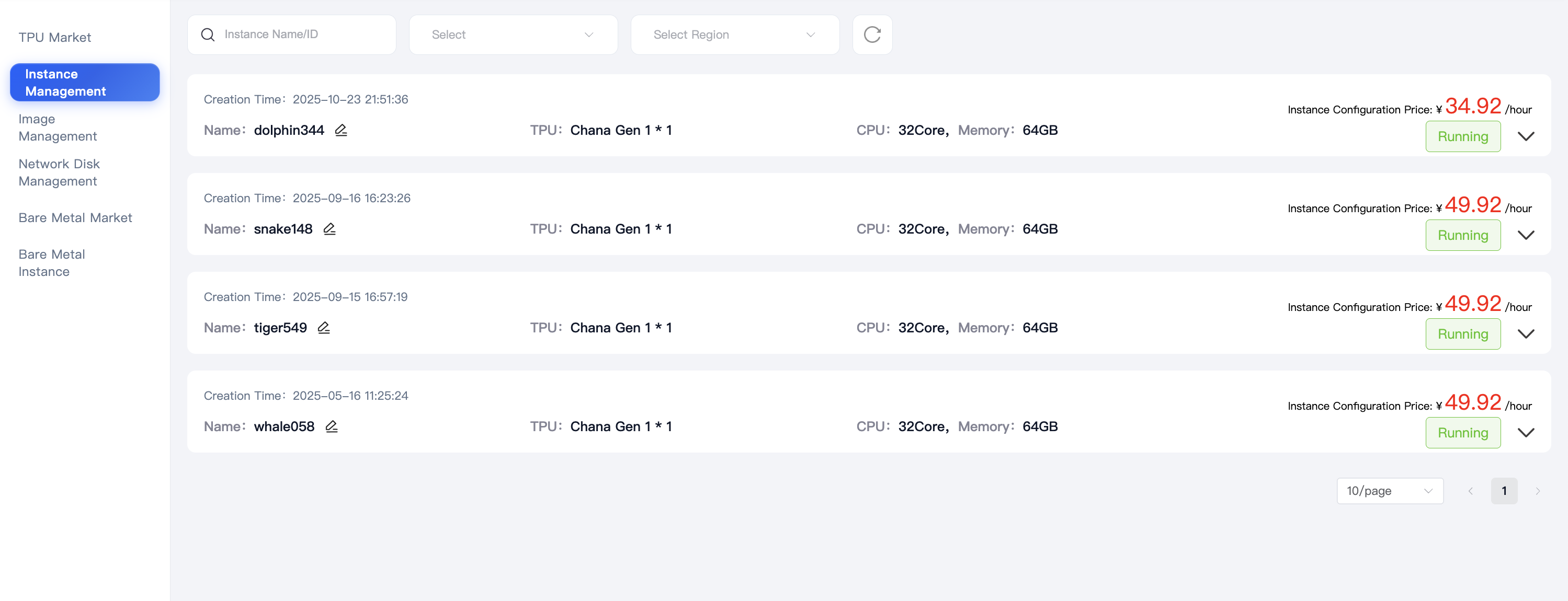
List Overview
- Filter: Supports filtering by instance name/ID, status, region, etc., and can perform refreshing.
- Instance Card: Displays CPU/memory, billing mode, image, cloud storage mount path, and current status.
- Operation Entry: Click "More Operations" or "Connect" on the right side of the instance to perform management actions.
Common Operations
Connect Instance: Click "Connect" to get SSH (only available on intranet, public network not yet open) or Web (Jupyter/Vscode) login container.
Restart / Stop / Start: Quickly execute in "More Operations", suitable for changing configurations or short downtime.
Save Image: After the instance environment debugging is completed, you can select private or public image, fill in the image name and tag in "More Operations > Save Image" and submit. The system will package the current environment in the background.
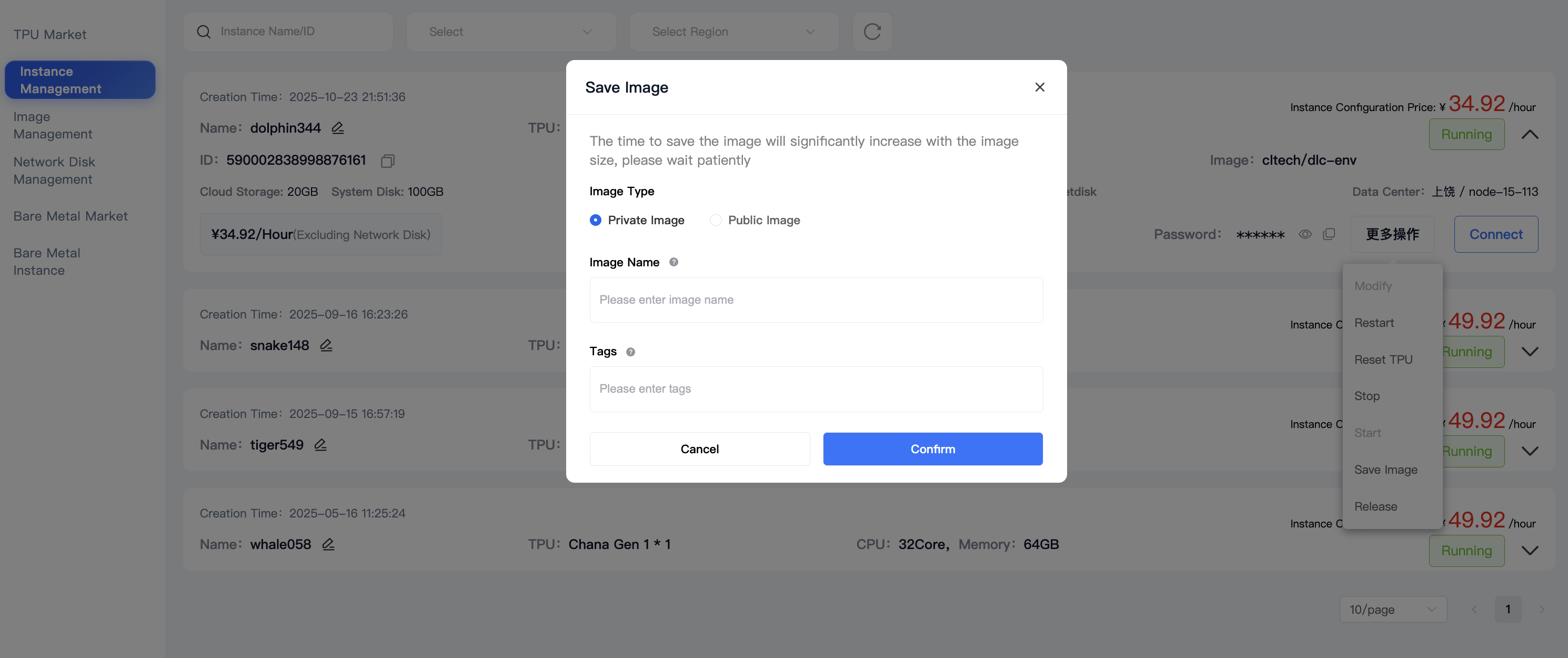
Release Instance: Completely destroy the instance and release computing power resources; please back up data in advance.
System Disk Expansion: When capacity needs to be increased while the instance is running, it can be completed through the "System Disk Expansion" operation.
Before operation, please confirm that the instance status is "Running" or "Stopped". Some operations (such as expansion) only support execution in specified states.
Status Description
- Running: The instance is active, and tasks can be logged in and submitted normally.
- Stopped: The instance stops billing, only retaining system disk/network disk data, and can be restarted at any time.
- Released: Releasing computing power resources cannot be recovered. Please complete data backup first; mounted data disks are retained by default and need to be manually released in Storage Management.
If operation fails or status is abnormal, contact technical support for assistance.